
You can Use Get-PublicFolderItemStatistics for Notifications to your advantage if you are an M365 administrator. Especially if you are in charge with doing something like maintaining a separate set of contacts for your organization based on a master list of Public folder contacts. You have to constantly check the Public folder for changes…
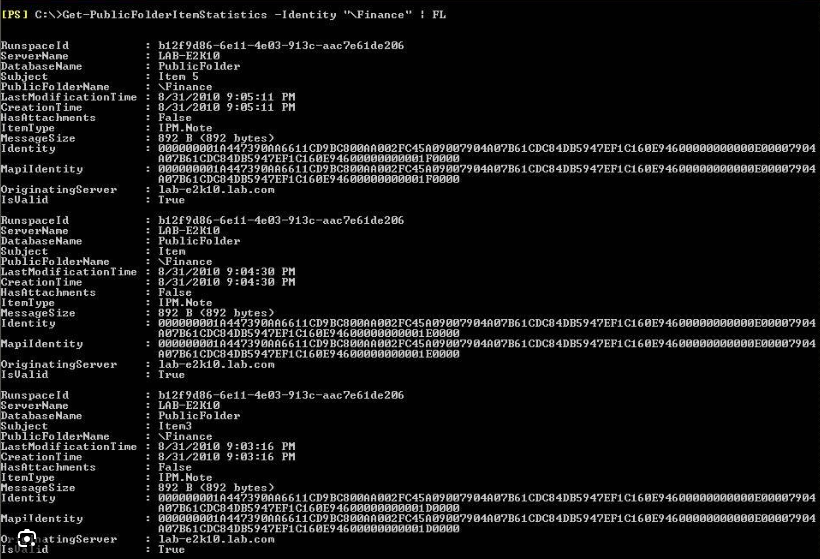
I guess you could ask the department that maintains the public folder to let you know when there have been changes made or you can set up an automated way using PowerShell and Tasks Scheduler.
Prerequisites On How To Use Get-PublicFolderItemStatistics for Notifications
This may seem like a long list but if you have been administering M365 for awhile you probably already have these set up. If, not please make sure you have the following:
- Be at least an Exchange Administrator in you Organization
- Have the Exchange Online Management Module Installed in PowerShell
- This is pretty important, you need to able to send mail in M365. This is not as simple as it used to be. You need to use an app registration in Azure AD to do this. I have written two articles about this. Please go here and here for more info
Once you have this set up, you can go on to the next step on how to Use Get-PublicFolderItemStatistics for Notifications.
Create a PowerShell Script To Check On the Public Folder
What this script does is allows you to Use Get-PublicFolderItemStatistics for Notifications that are sent by email to the email of your choosing. It looks for any changes that you set in the variable $baseline. If there is a change, the command Get-PublicFolderItemStatistics is piped into an html body that is formatted correctly for sending mail through the MS Graph API.
The contact listing in the public folder is sorted by modification date so you can tell which record was changed. In turn you can take this information and make the necessary changes to the separate copy of contacts you administer (more than likely through MS Graph). In the case of a delete, the record will not be there so you know which one to delete on your end.
After each change I edit the PowerShell script and change the variable $baseline. I add +1 for one Add, a -1 for one Delete and no change for a Change. You get the picture.
The Script
##Declare Parameters##

$clientID = "Your_Client_ID"
$clientSecret = "Your_Client_Secret"
$tenantID = "Your_Tenant_ID"

##Run Script##

Connect-ExchangeOnline

$baseline = <number>

$m = Get-PublicFolderItemStatistics -Identity "\Path\To\Public\Folder\Contacts" | Select Subject,LastModificationTime | Sort-Object -Property LastModificationTime -Descending

$m.count


if ($m.count -ne $baseline){


#Connect to GRAPH API

$MailSender = "sender_email"

#Connect to GRAPH API
$tokenBody = @{
    Grant_Type    = "client_credentials"
    Scope         = "https://graph.microsoft.com/.default"
    Client_Id     = $clientId
    Client_Secret = $clientSecret
}
$tokenResponse = Invoke-RestMethod -Uri "https://login.microsoftonline.com/$tenantID/oauth2/v2.0/token" -Method POST -Body $tokenBody
$headers = @{
    "Authorization" = "Bearer $($tokenResponse.access_token)"
    "Content-type"  = "application/json"
}

$h = $m | ConvertTo-Html | select -Skip 4

$HTMLBody = @"
$h
"@

$msg = $HTMLBody

#Send Mail
$URLsend = "https://graph.microsoft.com/v1.0/users/$MailSender/sendMail"
$BodyJsonsend = @"
                    {
                        "message": {
                          "subject": "Change in Public Folder Contacts.",
                          "body": {
                            "contentType": "HTML",
                            "content": "$msg"

                          },
                          "toRecipients": [
                            {
                              "emailAddress": {
                                "address": "email_you_specify"
                              }
                            }
                          ]
                        },
                        "saveToSentItems": "false"
                      }
"@

Invoke-RestMethod -Method POST -Uri $URLsend -Headers $headers -Body $BodyJsonsend

}else{
		Write-Host No Change!
}
Use Get-PublicFolderItemStatistics for Notifications Scheduled Task
You can run the above script manually if you want, you can set it up as a scheduled task to Use Get-PublicFolderItemStatistics for Notifications automatically. What you can do is write a small batch file and then call it periodically as a scheduled task. Here is the content of the simple batch file:
Powershell -File "C:\Patch\To\Batch\File\PublicFolderContactChange.ps1"
Create a task in Task Scheduler and used these settings if you like:
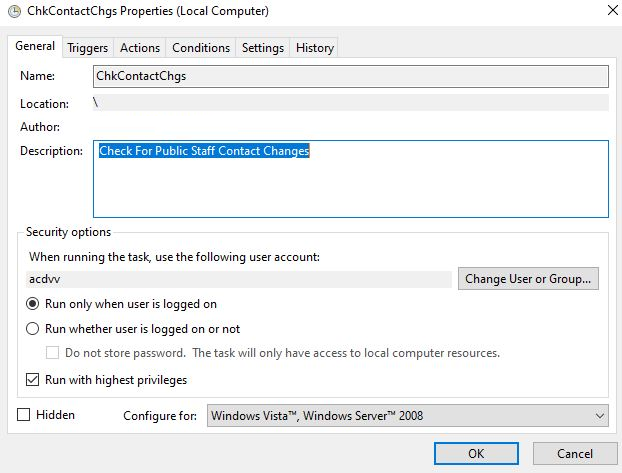
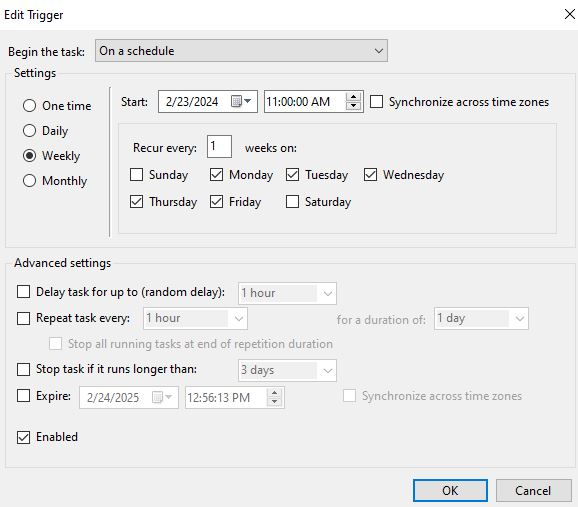
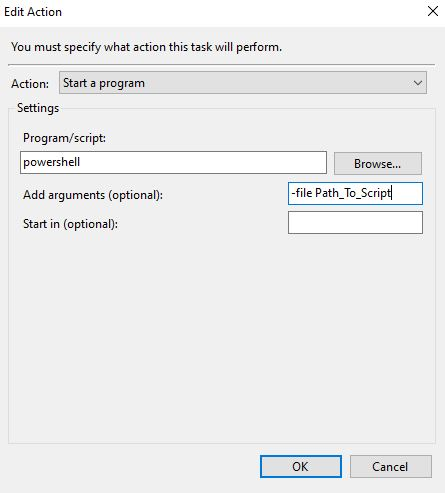
Now that you have the scheduled task set up, when there is a change in the public folder, you will be notified via email and you can make the necessary changes on your end. Beats having to remember!
Dan

I am an IT professional with over twenty five years experience in the field. I have supported thousands of users over the years. The organizations I have worked for range in size from one person to hundreds of people. I have performed support from Help Desk, Network / Cloud Administration, Network Support, Application Support, Implementation and Security.